Tuesday, March 06, 2018

My experience with migrating SSRS reports from SSRS 2014 to SSRS 2017


In this post I would like to share my experience of migrating our Reporting server from sql server We installed SQL SERVER 2017 on a new VM.  Now I wanted to migrate our SSRS reports to this server.

There are two steps involved to migrate SQL Server Reporting Services to SSRS 2017.

  • ·       The first step is to Install the SQL Services Reporting Services application. 
  • ·       The second step is to migrate the existing reports into the new installation.


Step 1
Installation of SQL Server Reporting Services 2017

In SQL Server 2017, it is available as a separate menu item on the Installation Tab of the SQL Server 2017 Installation center as shown below.


When you click on this, it takes you to the download page of SQL Server Reporting Services as shown below.  


This is because now because of the integration between Power BI Report Server and the Reporting Services there is a separate installer.
Click on the Download button.

 After the file is downloaded, double click on the application and install SQL Server Reporting Services as below.
I have posted some screenshots below.


  Choose Developer in the below screen. 


 Choose Configure Report Server in the below screen. 

This will open the Reporting Services Configuration Manager as shown below:


I have not made any changes to the Service Account tab.

On the Web Service URL Tab - I have just clicked apply to get the recommended suggestions updated.

On the Database Tab -- I have clicked on the Change Database button -- Opted for Creating a new database named (ReportServer) and clicked on apply.  This created two new databases named ReportServer and ReportServerTemp.

On the Web Portal URL Tab -- I have clicked  Apply so that the default settings are applied.

I did not make any other changes and clicked Exit.

Now, I tried to connect to the browser url http://localhost/reportserver , then the following error appeared.


To get rid of this error, I followed the below steps.
  1. Bring up SQL Server 2017 Configuration Manager .
  2. Click the dropdown arrow in front of “SQL Server Network Configuration”, and click the “Protocols for MSSQLSERVER”. (If you are using a named SQL Server instance, please select the named instance instead.)
  3. Make sure both the “TCP/IP” and “Named Pipes” protocols are enabled. If they are disabled, enable them by clicking on the dropdown as shown


Then I got an access denied error.  
The report server cannot open a connection to the report server database. The log on failed. (rsReportServerDatabaseLogonFailed) Get Online Help Cannot open database "ReportServer" requested by the login. The login failed. Login failed for user

To get rid of this, I followed the below steps
  1. Bring up the  SQL Server Reporting Services Configuration Manager,
  2. Click the "Database" tab and click change credential as shown below.

  1. Make sure the “Current User-Integrated Security” is selected and click Next.
  2. Ensure that the “Authentication Type” is set to “Service Credential”. This will use the user that the Reporting Services running under to connect to the report server database as shown below.
  3. Click Next and Next to apply.


Now I was able to access the ssrs site http://localhost/reportserver

Step 2
Migrate the existing reports into the new installation of SQL Server Reporting Services 2017

The next step is to migrate the existing reports into the new installation.  To do this, follow the below steps.
  • 1.     Back up the ReportServer and ReportServerTemp databases from the old Reporting Services installation. 
  • 2.     Restore these two database on to the new SSRS installation database.


Now you will find the reports from the old SSRS server in the new SSRS server if you browse through the url http://localhost/reports on the new ssrs installation box.

So I tried running a report, but I encountered the below error.


  • The report server was unable to validate the integrity of encrypted data in the database. (rsCannotValidateEncryptedData)
When you restore the ReportServer from a back up, it also restores the encryption keys.  So in order to resolve this error, I had to delete the encryption keys and regenerate them.  To do this go to Reporting Services Configuration Manager and click on Encryption Key tab and click on the delete button and Apply as shown below.


After getting this done, the report execution was successful.

However, when I looked at the Subscriptions of each report, they were not transferred.  So I will be migrating the subscriptions later and I will post my experience.
To be continued…………..

Friday, February 23, 2018

My first experience with SQL Server Database Partitioning

At my work I have inherited a database where the partitioning was not done correctly.  This database holds millions and millions of records for each year.  Hence the need for partitioning.

So I started working to correct/improve the same in a dev environment.  The current table (Table1) that is partitioned is based on filegroup.
After a lot of experiments,  I sought feedback from Partitioning expert Martin Cairney

He suggested me to correct this situation in the below steps.

Step 1. Create a new partition function (yearly_pf) and partition scheme (yearly_ps) that reflects the correct partitions.
The code I used for this is as below.


CREATE PARTITION FUNCTION [yearly_pf](datetime) AS RANGE RIGHT FOR VALUES 
(N'2007-12-31T23:59:59.997', 
N'2008-12-31T23:59:59.997',
N'2009-12-31T23:59:59.997',
N'2010-12-31T23:59:59.997',
N'2011-12-31T23:59:59.997',
N'2012-12-31T23:59:59.997',
N'2013-12-31T23:59:59.997',
N'2014-12-31T23:59:59.997',
N'2015-12-31T23:59:59.997',
N'2016-12-31T23:59:59.997',
N'2017-12-31T23:59:59.997',
N'2018-12-31T23:59:59.997')
GO


/****** Object:  Create Partition scheme      ******/
CREATE PARTITION SCHEME [yearly_ps] AS PARTITION [yearly_pf] 
TO ([FG_2007],
[FG_2008],
[FG_2009],
[FG_2010],
[FG_2011],
[FG_2012],
[FG_2013],
[FG_2014],
[FG_2015],
[FG_2016],
[FG_2017],
[FG_2018],
 [PRIMARY])
GO


Step 2. Create another table (Table 3) with the same schema as the existing table Table1.  But base this on the partition scheme rather than on filegroup.
For this I scripted the create table script from Table 1 as this will all the constraints of the existing table.  But I changed the On filegroup statement to On yearly_ps

Step 3.  Create a staging table (Table 2) to insert data from Table 1 on a year by year basis.
For this I used the create table script from Table 1

Step 4.  Insert the data from the staging table with a where clause that includes yearly data into Table 3.

Step 5.  After all the data is inserted into Table 3, rename Table 1 an rename Table 3 to Table 1.  When you are satisfied with everything, then drop Table 1.

I did this process from 2007 to 2012.
After that I started wondering do we really need the staging table. 
Since this is a dev environment, I thought I will try without the staging table.

So I repeated the steps 1 to 2 above after dropping Table 3.  Then I started to Insert data straight into Table 3 on a yearly basis.  I checked every time whether the yearly data is going to the correct partition or not.
The script I used for this is as follows.


SELECT  
    OBJECT_SCHEMA_NAME(p.object_id) AS SchemaName
  , OBJECT_NAME(p.object_id) AS ObjectName
  , i.name AS IndexName
  , p.index_id AS IndexID
  , ds.name AS PartitionScheme
  , p.partition_number AS PartitionNumber
  , COALESCE(fg.name, fg2.name) AS FileGroupName
  , prv_left.value AS LowerBoundaryValue
  , prv_right.value AS UpperBoundaryValue
  , CASE ISNULL(CAST(pf.boundary_value_on_right as SMALLINT),-1)
      WHEN 1 THEN 'RIGHT'
      WHEN -1 THEN 'N/A'
      ELSE 'LEFT'
    END AS PartitionFunctionRange
  , p.rows AS Rows
FROM    sys.partitions AS p
    INNER JOIN sys.indexes AS i 
        ON i.object_id = p.object_id
           AND i.index_id = p.index_id
    INNER JOIN sys.data_spaces AS ds 
        ON ds.data_space_id = i.data_space_id
    LEFT JOIN sys.partition_schemes AS ps 
        ON ps.data_space_id = ds.data_space_id
    LEFT JOIN sys.partition_functions AS pf 
        ON pf.function_id = ps.function_id
    LEFT JOIN sys.destination_data_spaces AS dds2 
        ON dds2.partition_scheme_id = ps.data_space_id
           AND dds2.destination_id = p.partition_number
    LEFT JOIN sys.data_spaces dsp 
     ON ds.data_space_id = dsp.data_space_id
    LEFT JOIN sys.filegroups AS fg 
     ON fg.data_space_id = dds2.data_space_id
    LEFT JOIN sys.filegroups AS fg2 
        ON fg2.data_space_id = dsp.data_space_id
    LEFT JOIN sys.partition_range_values AS prv_left 
        ON ps.function_id = prv_left.function_id
           AND prv_left.boundary_id = p.partition_number - 1
    LEFT JOIN sys.partition_range_values AS prv_right 
        ON ps.function_id = prv_right.function_id
AND prv_right.boundary_id = p.partition_number
where OBJECT_NAME(p.object_id)  = 'Table3'
)
ORDER BY ObjectName, IndexId, PartitionNUmber ;

The process was smooth.

I would like to implement this in Production.  I would like some feedback of the viewers of this blog as to whether I am doing any blunders here.


Saturday, February 17, 2018

My Presentation at SQLSaturday Wellington

Today Feb 17th 2018,  I had the wonderful opportunity to present at SQL Saturday Wellington.

My session is as below:

http://www.sqlsaturday.com/706/Sessions/Details.aspx?sid=72013

Had a very good day listening to some of the great speakers.

Tuesday, January 16, 2018

Did you know that you could export data from different SSRS Tablix into different excel sheets of a workbook?

Today I had a requirement from one of my customer to export data from two different tables generated out of SSRS reports into two different tabs of an excel sheet.
As per my article -- 
Tips to eliminate merged and hidden cells issue when a SSRS reports export to excel. my report has two Tablix with two different data sources. 

These are the steps I followed to export into two different tabs of an excel sheet.
Step 1   Right click on a column in the first Tablix and choose Tablix Properties.
On the General tab there are Page Break options.
Choose the Add Page Break After option as shown below.


Step 2  Next step is to ensure that the header is repeated on the second tab. To achieve this, select the header and choose properties.
Go the RepeatWith Property and choose Tablix2 as shown below.


Now when you export data using Export to Excel – there will be two sheets populated.  The first sheet will contain the first Tablix information and the second sheet will contain the second Tablix information.

Monday, January 15, 2018

Tips to eliminate merged and hidden cells issue when a SSRS reports export to excel.


From the past 3 days I have been working on resolving merged and hidden cells issues when an SSRS reports is exported to excel. 
Here are some tips that you can use to resolve this issue.

To eliminate blank A,B,C  columns at the beginning of the excel file, ensure that the report starts with no space on the left hand side of the report as shown below.


When you have multiple Tablix in your report ensure that they are aligned on both left and right sides of the report as shown below.


When you have title blocks ensure that they are in line with all the Tablix of the report as shown below


Last but not least if you have column groups, then ensure that the report size is same as all the Tablix and titles aligned as shown below.


After following all these tips and there are still merged and hidden cells, then ensure that each of the cells/columns in your matrix or Tablix are formatted with width rounded off to either no decimals or 2 decimals as shown below.


Hope you will get rid of the merged and hidden cells problem a lot quicker than the time I spent resolving this issue.


Thursday, January 11, 2018

How to disconnect visuals (bar charts, matrix etc) from Filters/Slicers in Power BI


Today I had a requirement to make a visual (bar graph) disconnected from a filter.  I had a bar graph displaying based on billing month.  The title of the chart is Count in the last 18 months.

If you have a billing month filter, then what happens is this chart will show only 1 month instead of the last 18 months as below.


So in order to show all the 18 months, you need to disconnect this visual from the filters.  To do this, you need to follow the below steps.


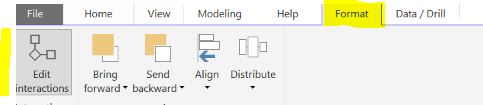
Step 1 Go to Edit Interactions button from the Format menu as shown below.


Step 2 Once the Edit Interactions button is highlighted, you can see extra icons for filter and none in the visuals when you hover over the top of the visual as shown below.  By default the filter icon is highlighted.


Step 3  To disconnect the visual from the filters click on the none icon as shown below.  This will not change the behavior of the visual based on the filter selected.


By doing this even if  we change the filter value for Billing Month, the visual displays all the 18 months.


Thursday, January 04, 2018

Connect to your Power BI Desktop Model using SSMS

Did you know that you can connect to your Power BI Desktop Model from Sql Server Management Studio (SSMS)?

If not, this blog post is for you.

In this blog post I will be showing you how to connect to your Power BI Model that you have opened with Power BI Desktop from SSMS.

Whenever I try to Get Data in Power BI, I always closely monitor the Task Manager for Memory usage.
I always notice that there is the Microsoft Sql Server Analysis /services and Power Bi Desktop applications top the memory usage as shown below.


What this means is Power BI Desktop uses Sql Server Analysis Services for getting data into its memory. Even though your local system does not have SSAS installed, it uses the msmdsrv executable that’s in the bin folder of the Power BI Desktop folder as shown below:


So there is a close connection between Power BI Desktop and SSAS.

Now coming to the actual content of this blogpost – In order to connect to the Power BI Desktop model from SSMs, you need to know the exact port that the local instance of SSAS is running.  To find out this port, follow the below steps –
Step 1   Open the Power BI Desktop model you are trying to access from SSMS using the Power BI Desktop application (October 2017). I used the Power BI Desktop application optimized for Power BI Report Server.

Step 2   Now browse to the Local App data folder using the path below –

C:\Users\username\AppData\Local\Microsoft\Power BI Desktop SSRS\AnalysisServicesWorkspaces\AnalysisServicesWorkspace422556974\Data

If you are using the regular Power BI Desktop model the local appdata folder will be as below
C:\Users\username\AppData\Local\Microsoft\Power BI Desktop\AnalysisServicesWorkspaces\AnalysisServicesWorkspace422556974\Data

Step 3.  In the above folder locate a text file named msmdsrv.port.txt as shown below :


Step 4  Open the file and copy the number of the port that is displayed.

Step 5  Now open SSMS and connect to Analysis services by giving localhost:portnumber  as shown below :


It uses Windows Authentication to connect to the model.

Step 6  Now you can see the databases and associated tables in the model as shown below.


There you go ... You are now connected to your Power BI Model using SSMS.


Thursday, December 28, 2017

Converting a Multidimensional SSAS Instance to a Tabular Instance

Did you ever have a situation where you felt like converting a Sql Server Analysis Services in Multidimensional Mode to Tabular Mode ?

I thought of trying this out after reading this article.  In this article from Microsoft, there is Caution note as below.


I thought let me try what happens if I changed the deploymentMode and see whether this changes my Multidimensional Mode to Tabular Mode.  Of course I tried this on my dev instance of SSAS 2016.

So first things first –
  1. Backed up my one and only one worldwide SSAS database.
  2. Detached the database
  3. Checked the server mode in the SSAS properties as shown below.

  4. Disconnected from my SSAS instance.

  5. Below are the steps I followed to convert the multidimensional SSAS model to Tabular Model

  6. Went to location -- C:\Program Files\Microsoft SQL Server\MSAS13.DEVELOPER\OLAP\Config
  7. Made a copy of the MSMDSRV.INI file
  8. Then opened notepad as Administrator as shown below


  9. Then from notepad opened the MSMDSRV.INI file
  10. Changed the deploymentmode from 0 to 2 as shown below 
  11.  Restarted the Analysis Services as shown below.  

  12. Then connected to the SSAS instance in Management Studio and checked the properties.
  13. The Server Model is showing as Tabular as shown below
   
Now I am expecting to build a Tabular SSAS Model on this SSAS instance and check whether this works. 

I know I cannot reattach the worldwide multidimensional model database I saved earlier.

More in a next blog whether I have been successful or not.


Thursday, December 21, 2017

Why are my SQL jobs failing ? -- High Memory/ CPU usage ?....

This week I had a situation where a job failed on a Monday and on a Wednesday.  When I reran the job later during the day, the job ran successfully.

When the job failed, my systems administrator got an alert for more than 90% memory usage on the server that runs the job.

He provided me a graph that showed the peak usage as shown below.


This prompted me to run a script that gives me a list of all the jobs for the last 3 days along with the duration they took to run the job.

I used the table MSDB.dbo.sysjobhistory.  In this table the date and time columns are stored as two different columns of type int -- Run_date and run_time.
Furthermore the run_time column is stored in hhmmss format but is not always 6 digits.

But the good news is there is a function available that we can use to get the rundatetime which is called msdb.dbo.agent_datetime.  This takes two arguments run_date and run_time.

There is also a run_duration column which is stored as type INT.  This column is a duration stored in hhmmss format similar to run_time column except that this is a duration.  So for example 208 indicates that the job took 2 min 8 secs.
So I had to do some transformation to the duration in minutes as shown in the script below.


select 
 j.name as 'JobName',
 h.step_name,
 msdb.dbo.agent_datetime(run_date, run_time) as 'RunDateTime',
 ((run_duration/10000*3600 + (run_duration/100)%100*60 + run_duration%100 + 31 ) / 60) 
         as 'RunDurationMinutes'
From msdb.dbo.sysjobs j 
INNER JOIN msdb.dbo.sysjobhistory h 
 ON j.job_id = h.job_id 
where j.enabled = 1  
order by JobName, RunDateTime desc


I took the results and analysed to see what are the peak times the jobs run.  The peak times are shown in the graph below for the three days.


I did some further analysis and decided to move the schedule of the jobs that are overlapping to run at a different time so that the server is not loaded at that time.

I will check the memory usage tomorrow and see if there are any failures.

Are there any other ways you can analyse the CPU/Memory usage ?  Look forward for your comments.


Wednesday, December 06, 2017

INSERT EXEC failed because the stored procedure altered the schema of the target table.

This morning I was trying to call a stored procedure and insert the results in a temp table using the following code  --


 create table #table1( 
   [col1] varchar(255) null, 
   [col2] varchar(255) null, 
   [col3] varchar(100) null,
   [col4] varchar(6) null,
            [col5] int null
            )

 Insert into #table1
 (
 [col1] ,
   [col2], 
   [col3] ,
   [col4] ,
            [col5]
 )
 EXEC [dbo].[stored_proc1]
 @Region = N'Canada'

I got the error as below:
Msg 556, Level 16, State 3, Line 36
INSERT EXEC failed because the stored procedure altered the schema of the target table.

When I just run the stored procedure without inserting into the temp table, the stored procedure runs fine and gives the results.

I tried to look at the order of the columns of the temp table I am inserting into, and also the temp table column configurations.  Everything looked the same.

So I started investigating the code in the stored procedure.  I found one clue that could be causing this.  The temp table in the store procedure has the same name as the temp table I am inserting the results of the stored procedure
So I changed the temp table name to table2 and then the results of the stored procedure were inserted into the new temp table table2.

So the final code is as follows:


 create table #table2( 
   [col1] varchar(255) null, 
   [col2] varchar(255) null, 
   [col3] varchar(100) null,
   [col4] varchar(6) null,
            [col5] int null
            )

 Insert into #table2
 (
 [col1] ,
   [col2], 
   [col3] ,
   [col4] ,
            [col5]
 )
 EXEC [dbo].[stored_proc1]
 @Region = N'Canada'

Wednesday, October 11, 2017

Two ways to reset the identity of a table in sql server.

I know of the following two ways to reset the identity of a table in sql server.

You often tend to use dummy data during the course of your development.  If you have identity columns in your table, the identity number grows. 
So you might want to reset the identity to 0 before you go to production.

This can be done in two ways.

First way is to use the DBCC CHECKIDENT command.

To check what the next identity number is going to be   you can use the below command
DBCC CHECKIDENT (tablename)
This will give you a message – sample below

Checking identity information: current identity value '746', current column value '746'.
DBCC execution completed. If DBCC printed error messages, contact your system administrator.


If you want to reset the identity number to 0 you can use the below command

DBCC CHECKIDENT (tablename, Reseed, 0)

Second way is to use the Truncate command.
We always tend to use the delete command for deleting records.  This is oggd when you have child relationships.

You can use Truncate table tablename command after a delete command.  Truncate command will ensure that the identity of the table is also reset.

Do you know of any other ways to achieve this ?

Thursday, October 05, 2017

My presentation at the Power BI User Group

Had a very good time presenting at the Power BI User Group .

My presentation was about Power BI Report Server --

I covered Installation, tips and tricks while installing Power BI Report Server and created a Power VI Report and published to the Power BI Report Server. 

Since this is a new product, there were a lost of questions asked.

The link to the meetup is Power BI Meetup

Thanks for the opportunity @Reza and @Leila Here is a link for the slide deck https://www.slideshare.net/secret/iP3JrBRS9R8Ch4


Wednesday, October 04, 2017

Speaking at the Power BI User Group Auckland today

I will be speaking at the Power BI User Group Auckland on 04 October 2017 on "Getting Started with Power Report Server" at 5:30 pm. This session will cover • Tips on getting your Power BI Report Server installed • Create a power BI report • Publish the report on the Power BI Report Server You can see the full details here

Sunday, September 17, 2017

Could not load folder contents - SSRS Report Manager

When I tried to access the report manager after a fresh installation of Sql Server Reporting Serivces 2016 using the url http://localhost/Reports , I received the below error.


By default the installation gives access to Builtin\Administrators. In order to resolve this error below are the steps that you can follow.
Step 1 Run internet explorer as Administrator and open the Report Manager URL http://localhost/Reports


Step 2 Click on Site Settings icon and then click on Security as shown.  You can see only one assignment of roles here for Builtin\Administrators

Step 3 Click on Add group or user assign the role assignment as shown below. 


Re-open internet explorer (non-admin) and recheck the url. You will not get the error anymore.

Friday, September 08, 2017

SSIS Error -- Exception deserializing the package "Access to the path ...... denied'

I was trying to build an SSIS package that one of my colleagues has created.

The first error that was thrown was  as below:
Exception deserializing the package "Access to the path 'C:\BACKup\Test\Test\bin\Development\Tcopy.ispac' is denied.".

Here are the steps that I have followed to resolve this.

Step 1  Check whether the package user has access to the path of the solution.
Step 2. Close the solution.
Step 3  Open Task Manager and end any process of DTS.  as shown below.


Step 4  Delete the .ispac file that is created in the bin/Development folder
Step 5  Reopen the solution and rebuild the package.

Hope these steps will help you resolve the build issues 

Monday, September 04, 2017

My presentation at SQL Saturday Auckland #655

I had an awesome day presenting at #sqlSaturday Auckland on 2nd September 2017.  My topic was on Predictive Analytics using  R  in SQL Server.


Link for my presentation below

Predicitve Analytics using R in SQL Server 2016


Friday, September 01, 2017

Rerun failed SSRS subscriptions

Below is the script I have used to rerun the SSRS Report subscriptions that have failed today.


use ReportServer
go
DECLARE @ScheduledReportName varchar(200)
DECLARE @JobID uniqueidentifier
DECLARE @LastRunTime datetime
Declare @JobStatus Varchar(100)
--------------------------------------------------------
DECLARE @RunAllReport CURSOR
SET @RunAllReport = CURSOR FAST_FORWARD
FOR
SELECT 
CAT.[Name] AS RptName
, res.ScheduleID AS JobID
, sub.LastRuntime
, CASE WHEN job.[enabled] = 1 THEN 'Enabled'
ELSE 'Disabled'
END AS JobStatus

FROM
dbo.Catalog AS cat
INNER JOIN dbo.Subscriptions AS sub
ON CAT.ItemID = sub.Report_OID
INNER JOIN dbo.ReportSchedule AS res
ON CAT.ItemID = res.ReportID
AND sub.SubscriptionID = res.SubscriptionID
INNER JOIN msdb.dbo.sysjobs AS job
ON CAST(res.ScheduleID AS VARCHAR(36)) = job.[name]
INNER JOIN msdb.dbo.sysjobschedules AS sch
ON job.job_id = sch.job_id
INNER JOIN dbo.Users U
ON U.UserID = sub.OwnerID
WHERE
sub.LastRunTime > GETDATE() - 1 and  Cat.Name LIKE 'reportname%' 
>convert(date,GETDATE()-2)
ORDER BY U.UserName, RptName 
OPEN @RunAllReport
FETCH NEXT FROM @RunAllReport
INTO @ScheduledReportName,@JobID,@LastRunTime,@JobStatus
WHILE @@FETCH_STATUS = 0
BEGIN
Print @ScheduledReportName --&' ' & @JobID
EXEC msdb.dbo.sp_start_job @job_name =@JobID
FETCH NEXT FROM @RunAllReport
INTO @ScheduledReportName,@JobID,@LastRunTime,@JobStatus
END
CLOSE @RunAllReport
DEALLOCATE @RunAllReport 

Power BI Kids competition 2026

 Celebrating the next generation of data rockstars! 🚀✨ I am incredibly proud to share that we have officially wrapped up our 8-week #PowerB...